Filterly - AI Photo Enhancer
- 4.0
- Rating
- 500.00K
- Installs
- Free
- Price

 Analysis by App-foxy
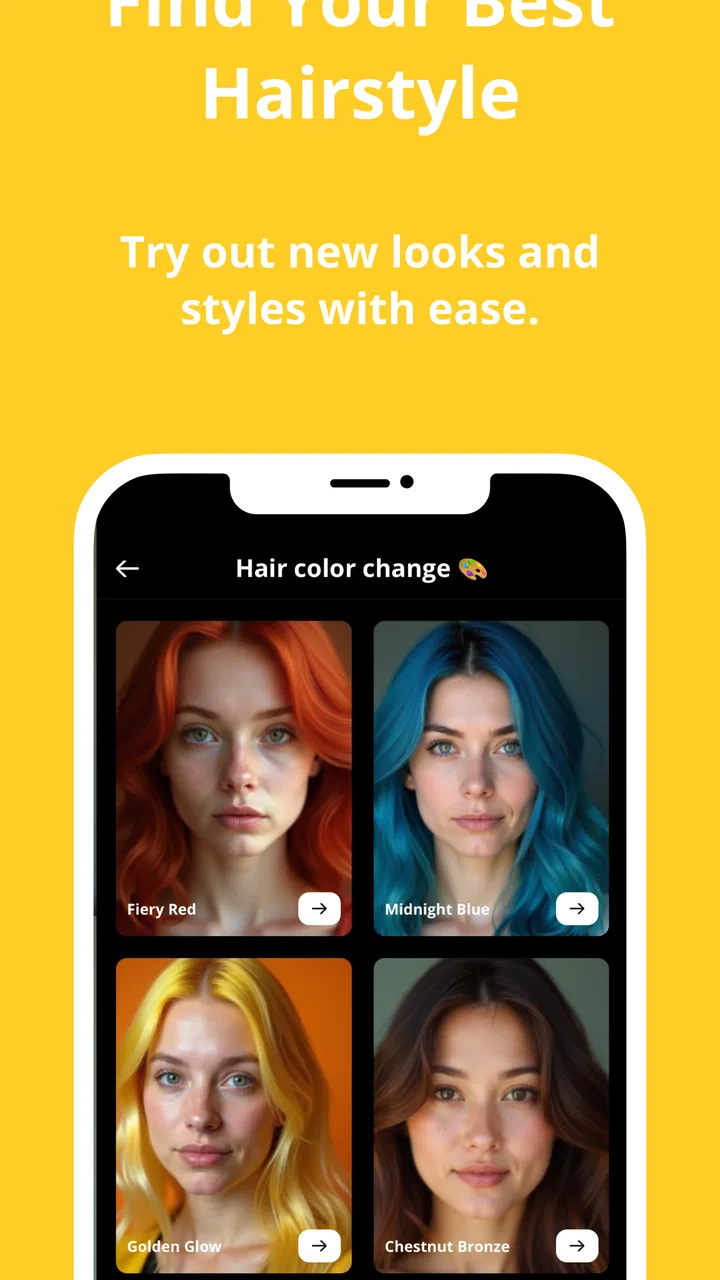
Filterly - AI Photo Enhancer is a free photography app from Asana Rebel that I would describe as a quick, playful editing tool rather than a complete replacement for a traditional photo editor. Its main appeal is simple: you bring in a selfie, explore AI-assisted styles, try retouching, and see how an aging effect changes the same face. That makes it easy to understand for a first-time user, especially if you want a noticeable result without learning layers, masks, curves, or complicated menus.
I spent time looking at it from the point of view of someone opening it for the first time, not someone who already knows every editing app. The experience is built around experimentation. You are encouraged to compare different looks and decide which one still feels like you. That distinction matters because the strongest result is not always the most dramatic one. In my experience, Filterly is most useful when I treat its effects as starting points for a profile picture, a private joke with friends, a social post, or a quick visual idea.
What to expect before you start editing
The app sits in the photography category, but it has a narrower purpose than a full photo suite. You should expect AI-focused transformations, selfie retouching, style changes, and aging effects. You should not approach it expecting the broad manual control found in apps designed for detailed color correction, compositing, or professional portrait work. Its strength is speed and visual feedback.
You May Also Like

 Blood Strike: 2.5 Anniversary
Blood Strike’s Loadouts Turn Every Drop Into a Tactical Gamble
A close look at Blood Strike’s custom loadouts: how fast access to signature weapons reshapes its battle royale rhythm, rewards preparation, and narrows the gap between fights.

 Pandora - Music & Podcasts
Pandora’s Music Is Easy to Start, but Harder to Recover
Pandora’s strength is its low-effort path from a seed to a station. Its weak spot is how much confidence it asks you to place in connection, setup, and quiet recovery.

 8 Ball Pool
 Is Built on Rivalries, Rematches, and Routine
A close look at the rivalries, rematches, shared routines, and unanswered safety questions that turn a quick pool match into a persistent mobile community.

 Samsung Music
’s Quiet Strength Is Playing What You Already Own
Its reach comes less from spectacle than from dependable access to a personal library. That simplicity is both the app’s strongest retention engine and its ceiling.

 AccuWeather: Weather Radar
AccuWeather Review: A Quick, Clear Forecast for Everyday Decisions
For everyday plans, the best forecast is the one you can understand quickly. AccuWeather makes rain timing, radar, and local conditions easy to act on, with a few trade-offs.

 Hill Climb Racing
Why Hill Climb Racing Still Turns Crashes Into One More Run
A tiny car, a bumpy hill and one more upgrade: Hill Climb Racing keeps resurfacing because its simple chaos makes every near-miss feel personal.
More From Our News Desk
View All News


The store summary promises a way to transform selfies with AI, and that is the right mental model. Filterly is not trying to make you spend twenty minutes adjusting tiny sliders. Instead, it gives you a more immediate before-and-after experience. I found that useful when I wanted to decide quickly whether a picture had enough potential to use. A single portrait can become several different ideas without requiring a separate editing workflow for each one.
It is available at no upfront cost, with optional in-app purchases ranging from $4.49 to $94.99 per item. That makes the first step easy, but I would still pay attention to which tools or styles are available without payment before planning a larger project around the app. The free entry point is convenient for testing, while the purchase range means the overall experience can depend on how much of the catalog you want to explore.
The app is rated for Everyone, and its current version is 3.1. It works on Android devices running version 7.0 or later, which gives it a broad technical reach. Its average rating is 4.0 from around 8.3 thousand ratings, and it has passed 500 thousand installs. Those figures suggest that it has found a real audience, although they do not remove the need to judge whether its particular editing style suits you.
One detail I would keep in mind is the developer name: Asana Rebel. That may surprise people who associate the developer with wellness products rather than portrait editing. I would not let that decide whether you try the app, but it is useful context when you are checking the app identity before installing it.
The kind of person who will enjoy it
Filterly makes sense for someone who wants a fast visual experiment. Maybe you have a selfie that is technically fine but feels ordinary. Maybe you want to test a new look before changing your profile image. Maybe you are curious about an aging effect and want to compare several versions of the same photo. In those situations, the app reduces the distance between an idea and a finished image.
It is also approachable for people who find conventional editors intimidating. If terms such as exposure, masking, white balance, and selective adjustment already sound like work, the AI approach is less demanding. You can focus on choosing a photo and judging the result. That is a genuine advantage, especially on a phone when you are editing during a short break rather than sitting down for a careful creative session.
I would be more cautious about recommending it to photographers who need repeatable, precise results. An AI effect can make a face look polished, but it may also change the character of the image in ways you did not intend. If your goal is accurate skin color, controlled sharpening, subtle lighting correction, or a consistent visual identity across many portraits, a manual editor is likely the better tool.
Getting through the first setup without guessing
For a first-time user, the best approach is to begin with one clear, front-facing selfie rather than a difficult group shot or a dark image. Choose a picture where the face is reasonably visible and not hidden by a strong angle, heavy shadow, or another person close beside it. This is not about making the app prove itself with the hardest possible image. It is about giving the AI a fair starting point so you can understand what it is designed to do.
After installing, I would avoid immediately importing a whole collection. Start with a single original image and keep that original untouched in your camera roll. This small habit makes comparisons much easier. If an effect looks exciting at first but later feels too strong, you can return to the source rather than trying to reconstruct it.
A useful first setup routine is to prepare three different selfies: a natural expression, a smiling portrait, and a side-angled image. Use the natural expression first. It gives you a neutral reference for judging retouching and style changes. The smiling picture can show whether an effect handles a more expressive face, while the angled portrait helps you notice when an effect works best only from a particular viewpoint.
Do not rush through the first preview. Look at the eyes, hairline, skin texture, and edges around the face. AI portrait effects can look convincing in the center of the image while becoming less natural around small details. I find that zooming in briefly, then zooming back out to view the whole composition, is a better test than judging only the large preview.
Another practical tip is to decide what you want the image to communicate before selecting an effect. If you need a believable profile photo, subtle retouching is more appropriate than an exaggerated transformation. If you are making something humorous for friends, a stronger style may be exactly the point. The same result can be good or bad depending on the intended use.
How to reach the first meaningful result
The first success should not be “I applied the strongest filter.” It should be “I found a version that improves the photo for a specific purpose.” I recommend starting with retouching on a clean selfie, then comparing the result with the original before trying more dramatic styles. This creates a baseline and teaches you how much change you actually like.
When the preview appears, check whether the face still resembles the person in the original photo. That sounds obvious, but it is the most useful test for any AI portrait tool. A smoother complexion or a different visual mood can be welcome; a result that removes the expression or makes the face look generic is less useful. I tend to favor the option that leaves some natural texture and recognizable features intact.
Once you have a retouched version you like, try an aging effect using the same source image. Keeping the source constant turns the experiment into a fair comparison. You can see what comes from the effect itself rather than wondering whether a different photo caused the change. This is one of the more interesting uses of the app because it turns a casual selfie into a visual comparison exercise.
For a realistic everyday scenario, imagine that you are updating a messaging profile before meeting people you have not seen for a while. You can begin with a recent selfie, test a restrained retouch, and inspect it at the size your contacts will actually see. If the face still looks familiar and the lighting feels believable, you have a useful result. If the effect becomes obvious when viewed small, return to a gentler option. A profile image usually benefits from recognition more than spectacle.
For another scenario, you might be preparing a birthday message for a friend. Here, an aging effect can be more entertaining than a polished portrait, especially when paired with the original image. The important trade-off is context: a playful transformation works because the viewer understands it is playful. The same exaggerated edit may be inappropriate for a professional account or an image meant to represent you seriously.
What can feel confusing during editing
The biggest source of confusion is the difference between an effect that looks impressive in a preview and one that remains comfortable to look at after several seconds. AI editing often rewards the first glance. I suggest switching back to the original more than once, because repeated comparison exposes changes that initially seem harmless. Pay particular attention to face shape, eyes, teeth, and skin texture.
Another point of friction is deciding whether a style is meant to be realistic or expressive. Not every transformation should be judged by naturalism. Some are better understood as visual costumes for a selfie. If you expect every option to preserve your appearance faithfully, you may find the app inconsistent. If you separate “portrait improvement” from “creative transformation,” its range makes more sense.
You may also wonder why one photo responds better than another. The answer is often in the source image rather than in the effect. A clear face with even light gives the app more useful visual information. Hair crossing the eyes, sunglasses, strong backlighting, or a very tight crop can make the result feel less reliable. When an edit disappoints you, try the same style on a different selfie before deciding that the tool is not worthwhile.
I would not use the first generated result as the final decision. Make a small shortlist of two or three versions, then review them later with fresh eyes. This is especially helpful for retouching, where the most processed option can seem appealing until you compare it with the original. A short pause is a surprisingly effective way to avoid choosing an image that no longer feels authentic.
There is also a practical payment question. Because the app is free to install but includes paid items, a first-time user should distinguish between trying the app and committing to its broader set of options. I would explore the available experience first, identify whether the core style matches my taste, and only then consider an in-app purchase. That order prevents a common mistake: paying for more effects before knowing whether the underlying editing approach suits you.
How it compares with familiar alternatives
Compared with a classic manual photo editor, Filterly is quicker but less exact. A manual editor gives you control over individual corrections and usually makes it easier to repeat the same treatment across several images. Filterly is more convenient when you want a transformation without building it adjustment by adjustment. I would choose Filterly for discovery and speed, and a manual editor for consistency and careful finishing.
Compared with a basic phone gallery editor, it offers a more distinctive portrait-focused experience. Standard gallery tools are excellent for cropping, rotating, adjusting brightness, and making small corrections. They are usually the safer choice when the image is already good and only needs cleanup. Filterly becomes more interesting when a normal correction feels too ordinary and you want to explore a different appearance.
Compared with social media filters, the app can be a better place to experiment before posting. You can judge the image privately rather than making a public post just to see how a look works. The trade-off is that social platforms may offer faster sharing and effects designed around their own publishing workflow. If your priority is immediate posting with minimal steps, an in-app social camera may be more convenient.
The most useful comparison is not which app has the largest number of effects. It is which workflow matches your intention. Filterly is strongest when the question is, “What could this selfie look like?” It is weaker when the question is, “How do I correct this exact color problem across a whole set of photos?” Knowing that boundary saves time and leads to better results.
Small workflow changes that improve the results
First, keep the original and edited versions visually separate while you are deciding. I prefer reviewing the source immediately before the edited image, rather than relying on memory. This makes it easier to notice whether the app improved the portrait or simply made it more dramatic.
Second, use the same image for a controlled comparison. If you test a retouch on one selfie and an aging effect on another, you may confuse the quality of the source with the quality of the transformation. One source image, several treatments, and a short pause between comparisons give you a clearer sense of what you actually prefer.
Third, judge the image at its intended size. A face that looks slightly artificial when enlarged may be perfectly readable as a small profile picture, while a flaw that seems minor in the editor can become distracting when the image fills a screen. I would inspect both views before deciding.
Fourth, use stronger effects for a defined reason. A dramatic style is more successful when it supports a joke, a theme, or a creative experiment. Applying it simply because it is the most noticeable option often produces an image that is harder to use. The best Filterly result is usually the one that matches the purpose of the photo, not the one that changes the face the most.
Finally, treat retouching as a choice rather than a requirement. If the original selfie already has a natural expression and good light, a heavy edit may reduce its personality. Sometimes the most useful outcome is learning that the source image needs only a small change, or none at all.
My recommendation after using the full workflow
Filterly - AI Photo Enhancer is worth trying if you want an accessible way to experiment with selfies, styles, retouching, and aging effects. I like that its purpose is immediately understandable and that it does not demand traditional editing knowledge. The first meaningful success can happen quickly when you use a clear portrait, compare every result with the original, and choose an effect based on where the image will be used.
I would recommend it to casual creators, profile-picture shoppers, people making playful images for friends, and anyone curious about AI portrait transformations. It is particularly approachable for a first-time user because the learning curve is mostly visual: choose a photo, preview a treatment, inspect the face, and decide whether the result feels right.
I would skip it, or use it only alongside another editor, if you need precise manual control, dependable batch consistency, or professional portrait correction. The free installation is a sensible way to test that boundary, but remember that optional purchases can become significant depending on which items you choose. Explore first, compare carefully, and spend only if the available editing style genuinely earns a place in your routine.
My final view is positive but measured. This is not the app I would open for every photography task, and I would not trust an AI transformation without checking the details around the face. Still, for quick selfie experiments, it offers a friendly path from an ordinary portrait to a more interesting visual idea. If you approach it as a creative companion rather than a precision studio, Filterly is a convenient, low-pressure way to discover a version of your photo you may not have considered.
FAQs for Filterly - AI Photo Enhancer
01What is Filterly - AI Photo Enhancer, and what can it do?
Filterly - AI Photo Enhancer is designed to improve photos with automated editing tools powered by artificial intelligence. It can typically help sharpen soft images, enhance colors, adjust lighting, reduce visual imperfections, and apply creative filters. The app is most useful for quick edits when you want a cleaner, more polished result without manually adjusting every setting in a professional photo editor.
02Is Filterly - AI Photo Enhancer free to download and use?
Filterly may be available to download for free, but some enhancement tools, filters, export options, or advanced features can require in-app purchases or a subscription. Before starting a trial, check the pricing page carefully, including the renewal terms and cancellation procedure. Availability of free features and premium plans may also vary depending on your device, region, and the version installed.
03Does Filterly improve blurry or low-quality photos effectively?
The results depend on the original image and the type of problem you are trying to correct. Filterly can make some portraits, screenshots, and older photos look sharper and more balanced, but it cannot perfectly recreate details that were never captured. Extremely blurry, dark, compressed, or heavily damaged pictures may show limited improvement, and excessive enhancement can sometimes create artificial-looking facial details or textures.
04Are my photos safe when I use Filterly - AI Photo Enhancer?
Before importing personal images, review Filterly’s privacy policy and the permissions requested by the app. AI enhancement may be performed directly on the device or through remote servers, depending on the feature and current app version. Avoid uploading sensitive documents or private photographs unless you understand how images are processed, stored, and deleted, and only grant access to the photos you actually want to edit.
05Can I save and share enhanced photos from Filterly?
After editing, Filterly generally allows users to save the enhanced image to the device and share it through compatible social networks, messaging apps, or other services. Export quality, image resolution, file format, and possible watermarks may depend on the selected tool or whether you use the free or premium version. It is worth checking the preview before exporting, especially if image quality is important.
Pros
- Enhances blurry or low-resolution photos with minimal effort.
- Simple interface suitable for users without editing experience.
- Useful presets can speed up common photo improvements.
- Previewing results makes it easy to compare before and after.
- Can help restore details in older or compressed images.
Cons
- AI results may look artificial when enhancement is pushed too far.
- Processing quality can vary depending on the original photo.
- Some advanced tools may require a subscription or paid credits.
- Uploads may raise privacy concerns for sensitive personal photos.
- High-resolution processing can take longer and use more battery.

Filterly - AI Photo Enhancer
Gallery